Assistance Required with VoiceAI App

I’m a user of your basic account plan
I’ve encountered an issue with the VoiceAI app where the generated voice sounds mechanical.
-

Here are some other tips that could help you achieve better results:
- You will need a good microphone and a quiet recording environment.
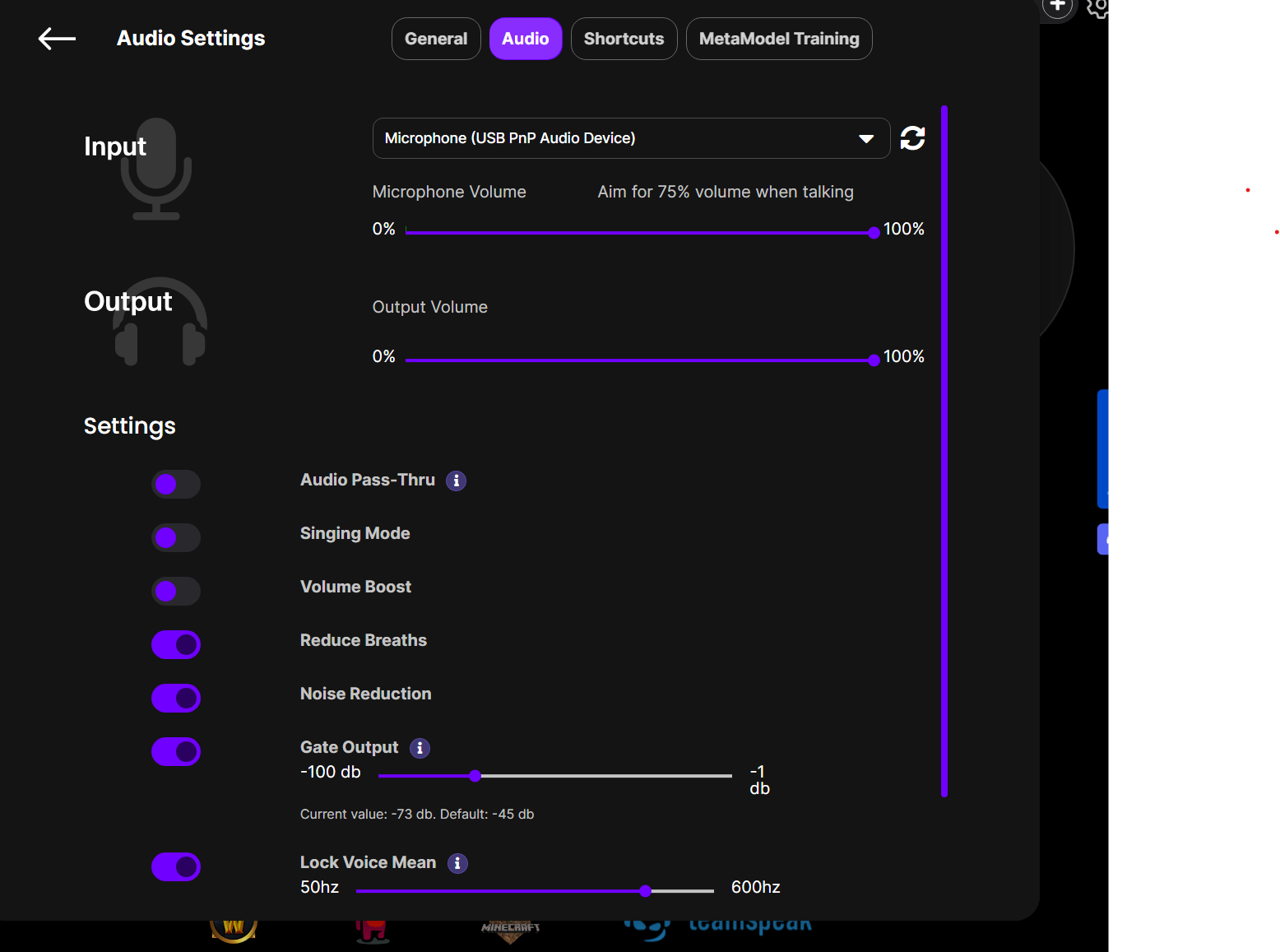
- Make sure your microphone input is as high as possible on the mic itself, in both Windows settings and Voice.ai.
- The tool may pick up any input (including background noise), so try to change those sounds.
If you're still getting bad output, here are a few troubleshooting steps you can try:
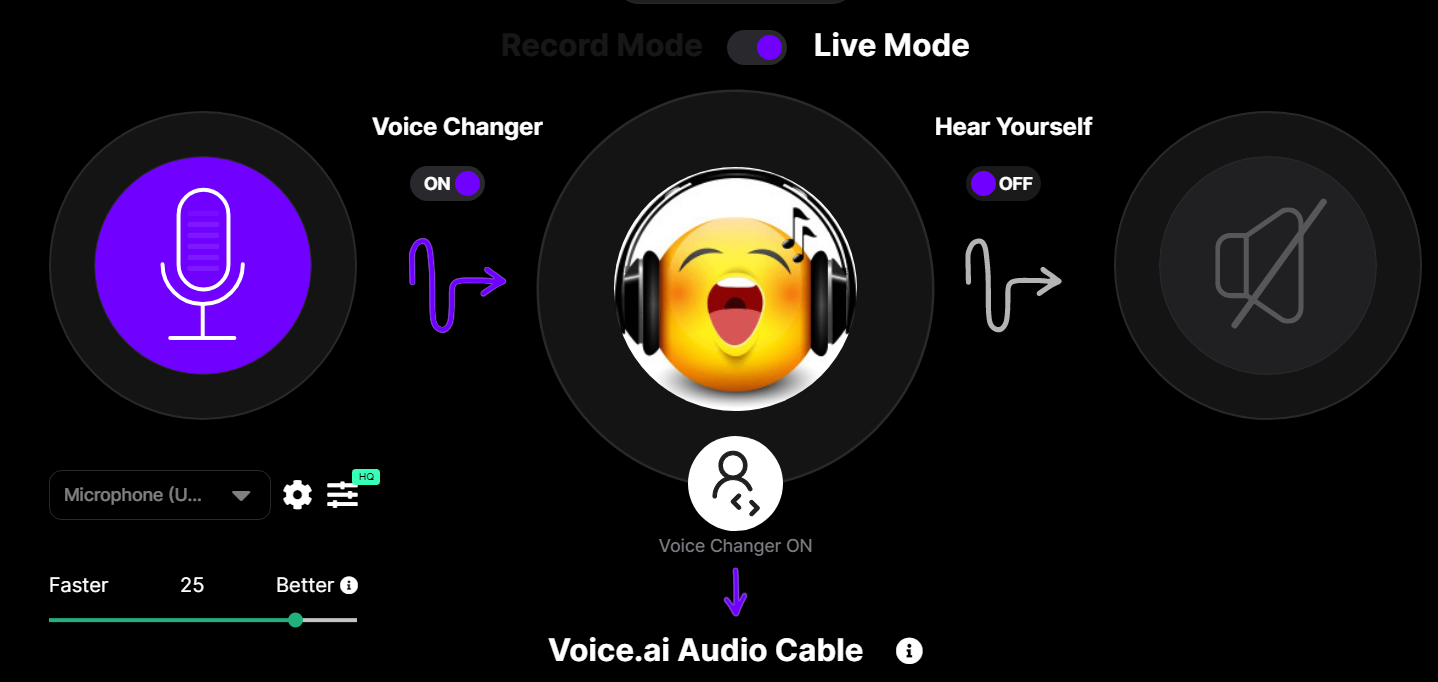
- Check if the Faster/Better slider turns green after a few seconds while in live mode with the voice changer on. Testing different values on the slider could give different results.
- Closing programs and especially games can give a higher chance of working.
- Running Windows update. If you open a CMD prompt and type "ver", you can see your Windows version. The virtual cable currently requires a Windows version of at least 10.0.19041. If your version is below this, updating and then uninstalling/reinstalling Voice.ai according to the instructions below would resolve the issue.
- Updating Visual C++, and then uninstalling and reinstalling Voice.ai.
- Running voice.ai as an administrator.
If you have an older version of our software, updating or reinstalling it ensures that you'll have the latest version of Voice.ai. You can uninstall Voice.ai through Windows Add/Remove Programs.
0 -
I have followed all suggestions but still issue exists
my windows version is 10.0.22621.3007
running the Voice.ai as an administrator
and have updated version
and I record the voice in quit place
and using IUKUS USB Microphone, PC Microphone USB Condenser
 0
0
Please sign in to leave a comment.
Comments
2 comments